

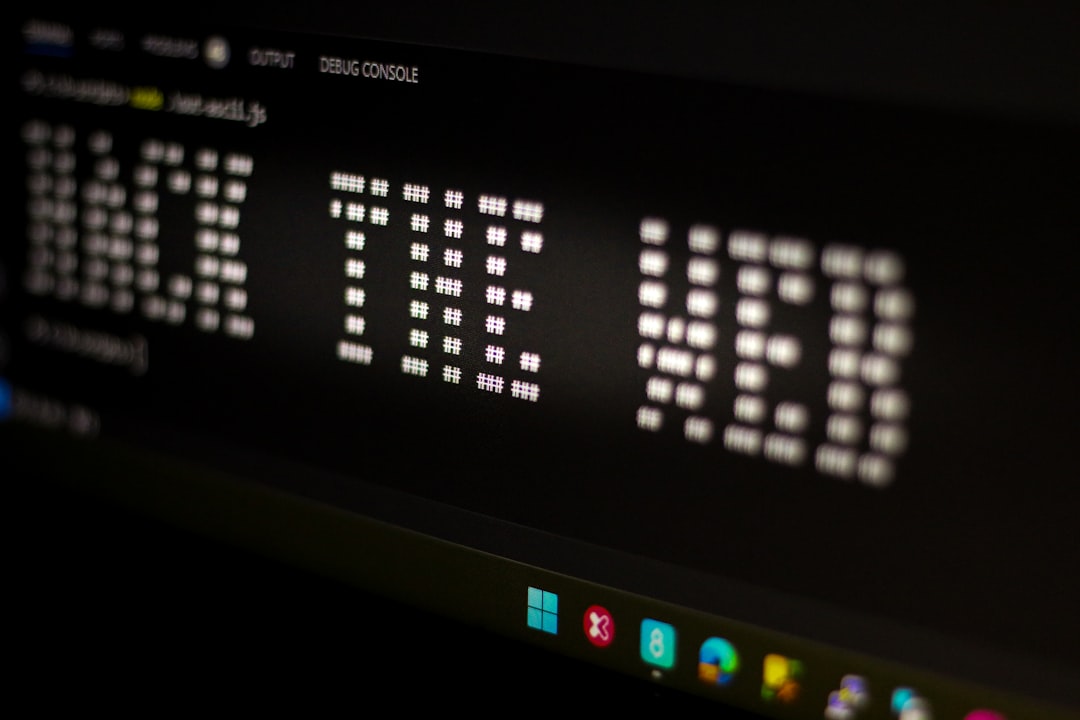
You've seen it before. A README opens with a giant blocky banner spelling out the project name, or a terminal greets you with a splash screen in bold block letters. That's text to ASCII art, and you can make one in seconds with no design skills at all.
What "ASCII Art" Actually Means (Banners vs. Images)
When people search for text to ASCII art, two different things share the name — and they're easy to confuse.
This guide covers FIGlet-style text banners: letters built from printable characters, where each character in your text becomes a column of ASCII symbols stacked to form a big readable glyph. You've seen these in terminal MOTD screens, README headers, CLI tool splash screens, and code file headers.
The other kind converts a photo or image into a grid of characters that approximates tones and shapes. That's image-to-ASCII conversion — a separate tool, a separate use case.
Turn Text into ASCII Art in 3 Steps
Converting text to ASCII art takes three steps. Open the ASCII Art Generator, then follow along.
Step 2: Pick a font style. Standard, Banner, Block, Slant, Shadow, and Bubble are the most common options. Each produces a different character.
Step 3: Copy or download. Click the copy button and paste wherever you need it.
Here's what the word HELLO looks like in the Block font:
 _   _  _____  _       _       ___
| | | ||  ___|| |     | |     / _ \
| |_| || |__  | |     | |    | | | |
|  _  ||  __| | |     | |    | | | |
| | | || |___ | |____ | |____| |_| |
|_| |_|\____/ |______||______|\___/
That output is ready to paste into a README, a shell script header, or a config file comment.
Picking the Right Font for the Job
Font choice comes down to where the banner will live and how much space you have.
- Standard — clean and compact, works almost everywhere. Use it when: README headers, general terminal banners, any context where you need something legible at a glance.
- Banner or Block — tall and bold, maximum visual impact. Use it when: splash screens, ASCII logos, anywhere you want the text to dominate.
- Slant — italicized columns give a stylish, dynamic feel. Use it when: project names in promotional READMEs or social-code screenshots.
- Shadow — adds a subtle drop shadow effect. Use it when: you want depth without going full-Block.
One practical rule applies to all fonts: keep your text under roughly 50 characters, or it wraps mid-letter and the output becomes unreadable. For long names, abbreviate or split across two banners.
Why Your ASCII Art Looks Broken (and the Fix)
You copy the banner, paste it into a chat or a web page, and the columns are misaligned — letters that should stack vertically are all over the place.
The cause is proportional fonts. ASCII banners rely on every character being exactly the same width (monospace). In a proportional font like Arial or Georgia, an i is narrower than an m, so the columns drift apart.
The fix is to display and paste in a monospace context:
- Terminal — monospace by default.
- Code editors — monospace by default.
- GitHub README — wrap the banner in a fenced code block (triple backticks). That forces GitHub to render it in a fixed-width font, and alignment is preserved.
| | | || ___|| | | | / _ \ ...
This single tip fixes 90% of "my ASCII art is broken" complaints. Keep it in mind every time you convert text to ASCII art and paste a banner somewhere new.
FAQ
Why does my ASCII art look scrambled when I paste it?
The font in your destination is proportional, not monospace. Each character takes a different amount of horizontal space, so the columns that make up each letter shift out of alignment. Paste into a monospace environment — a terminal, a code editor, or a fenced code block in Markdown — and the art will render correctly.
How do I add ASCII art to a GitHub README?
Wrap it in a fenced code block using triple backticks. GitHub renders fenced blocks in a monospace font, which preserves column alignment. Without the code block, GitHub's Markdown renderer displays the text in a proportional font and the art breaks. For the ASCII Art Generator, the copy button already gives you plain text — just paste it between the backtick fences.
What's the difference between ASCII art and fancy Unicode text?
ASCII art banners build large glyphs from standard keyboard characters arranged in a grid. Fancy Unicode text replaces individual letters with visually similar Unicode symbols — so hello might become ℍ𝔼𝕃𝕃𝕆 or 𝓱𝓮𝓵𝓵𝓸. The result is inline text that flows normally in any font, not a multi-line banner. If you want stylized inline text rather than a banner, the Fancy Text Generator is the right tool for that.
Conclusion
Text to ASCII art takes three steps: type, pick a font, copy. The one thing that trips people up is fonts — always paste into a monospace context or a fenced code block. Head to the ASCII Art Generator to make your first banner now.
For related text transformations, check out the Morse Code Translator for encoding text as dots and dashes, or the Hex to ASCII converter for working with raw character codes. Need to prep your text before converting? The Case Converter handles uppercase, lowercase, and title case in one click.